

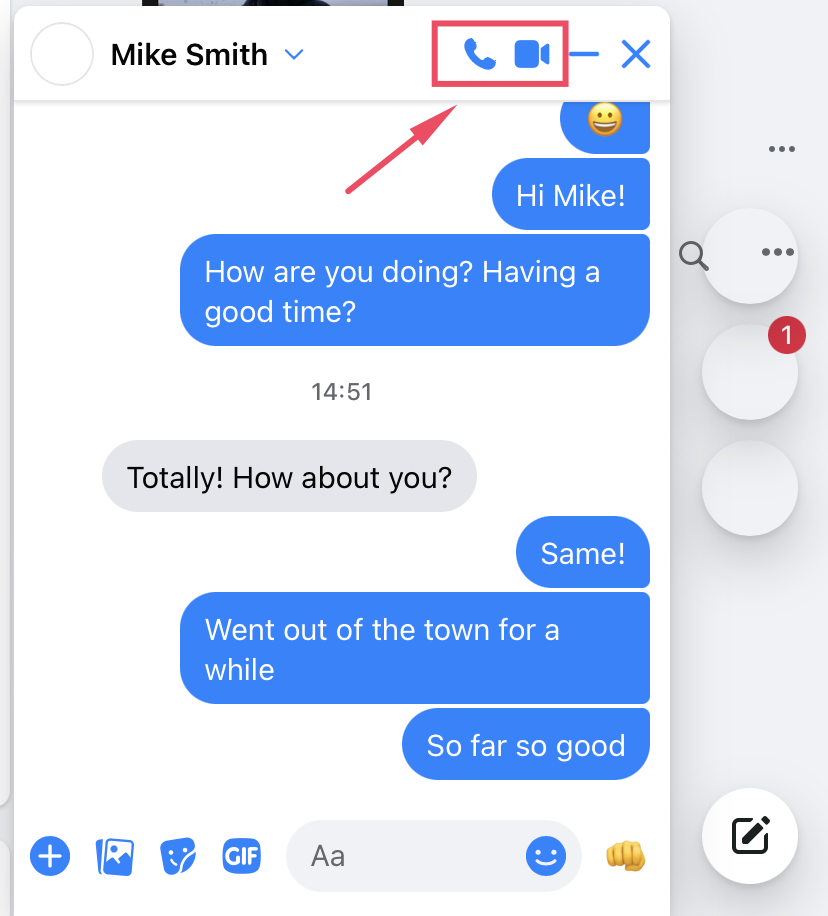
Text messages remain one of the most common ways people communicate, yet they’re also one of the easiest entry points for digital snooping. From malware to account syncing to simple password leaks, unauthorized access to your messages can happen more easily than most people realize.
Cybersecurity agencies have repeatedly warned the public to be cautious about how they share information through text. While this doesn’t mean you should stop texting altogether, it does mean you should stay alert to signs that someone may be reading your messages without your knowledge.
This guide breaks down the three most important warning signs, explains how message snooping happens, and gives you practical steps to protect your privacy.
Why Text Message Snooping Happens
Millions of text messages are sent every day, and many contain sensitive information—addresses, photos, private conversations, financial details, and more. Because of this, text messages are a valuable target for:
- Hackers
- Scammers
- Suspicious partners
- Stalkers
- Anyone with access to your accounts or devices
Unauthorized access can happen through spyware, shared accounts, cloud syncing, or even social engineering. The good news is that your phone often shows subtle signs when something isn’t right.
Let’s break down the three biggest red flags.
Sign 1: Your Phone Suddenly Becomes Slow, Hot, or Drains Battery Quickly
A healthy phone should run smoothly. If yours suddenly starts acting strangely, it may be more than just age or a software glitch.
Common symptoms of spyware or hidden monitoring tools:
- Apps take longer to open
- Your phone freezes or lags
- Battery drains much faster than usual
- The device feels warm even when idle
- Data usage spikes unexpectedly
These symptoms often appear when spyware is running in the background. Spyware is designed to stay hidden while collecting:
- Text messages
- Call logs
- Social media chats
- Location data
- Photos and files
Some spyware can be installed if someone knows your Apple ID or Google account credentials. Others require physical access to your device for just a few minutes.
What to do if you suspect spyware
- Install a reputable antivirus app and run a full scan.
- Review all installed apps and delete anything unfamiliar.
- Check for configuration profiles (iPhone) or device admin apps (Android).
- Close unnecessary background processes to see if performance improves.
- Perform a factory reset if the issue persists.
- Only download apps from official app stores.
If you see suspicious apps that resemble known monitoring tools, remove them immediately.
Sign 2: You Receive Strange or Unsolicited Messages
Another major warning sign is receiving unusual text messages, especially those containing:
- Random verification codes
- Links you didn’t request
- Messages with strange characters or symbols
- Ads or spam that seem personalized
- Messages referencing private conversations
These can indicate that someone is trying to:
- Access your accounts
- Trigger message forwarding
- Install malware
- Test whether your number is active
Check for SMS forwarding
On iPhones, text messages can be forwarded to other Apple devices. If someone has access to your Apple ID, they could enable this without your knowledge.
To disable SMS forwarding on iPhone:
- Go to Settings
- Tap Messages
- Select Text Message Forwarding
- Turn off forwarding for any device you don’t recognize
If you see devices you don’t own, someone may be receiving copies of your messages.
Sign 3: Your Messages Show as “Read” Even When You Didn’t Open Them
This is one of the clearest signs of unauthorized access.
If messages on apps like:
- iMessage
- Facebook Messenger
- Telegram
…show as “read” even though you never opened them, someone else may be logged into your account.
How this happens
- Your Apple ID or Google account is shared with someone else
- You’re logged into multiple devices you forgot about
- Cloud backups are synced across shared devices
- Someone guessed or stole your password
- You left your account logged in on a borrowed device
Quick test
Ask a friend to send you a message. Do not open it. If it shows as “read,” someone else may have accessed your account.
How to fix it
- Change your passwords immediately
- Log out of all devices
- Disable cloud syncing for messages
- Review connected devices in your account settings
- Enable two-factor authentication
Can You Get Scammed Just by Opening a Text Message?
Opening a plain text message is usually safe. However, you can be scammed if you:
- Click a malicious link
- Download an attachment
- Respond to a scammer
- Share personal information
Some messages are designed to trick you into revealing sensitive data or installing malware. When in doubt, delete suspicious messages without interacting with them.
The Positive Side of Monitoring: Parental Control Tools
Not all monitoring tools are harmful. Many parents use them—with their child’s knowledge—to protect kids from online risks such as:
- Cyberbullying
- Fraud
- Inappropriate content
- Online predators
Parental control apps can help parents monitor:
- Text messages
- Call logs
- Browsing history
- Social media activity
They also allow parents to:
- Block harmful websites
- Limit screen time
- Receive alerts about risky behavior
- Filter inappropriate content
These tools are designed for safety, not surveillance, and should always be used transparently.
How to Stop Someone from Monitoring Your Text Messages
Protecting your privacy doesn’t require advanced technical skills. These steps significantly reduce the risk of unauthorized access.
1. Enable Two-Factor Authentication (2FA)
Passwords alone are no longer enough. 2FA adds an extra layer of protection by requiring a second verification step.
Use authenticator apps instead of SMS-based codes. Popular options include:
- Google Authenticator
- Authy
- Duo Mobile
Always save your backup codes in a secure place.
2. Review App Permissions Regularly
Many apps request permissions they don’t actually need.
Check which apps have access to:
- Messages
- Contacts
- Microphone
- Camera
- Location
On iPhone: Settings → Privacy & Security
On Android: Settings → Apps → [App Name] → Permissions
If something looks suspicious, revoke access immediately.
3. Use Encrypted Messaging Apps
End-to-end encryption ensures only you and the recipient can read your messages.
Popular encrypted apps include:
- Signal
- Threema
Some apps offer additional privacy features:
- Disappearing messages
- Screenshot alerts
- Secret chats
- No cloud backups
Avoid sending sensitive information through unencrypted platforms.
4. Strengthen Your Lock Screen Security
A strong lock screen prevents unauthorized physical access.
Tips:
- Use a long passcode
- Avoid predictable patterns
- Enable fingerprint or face recognition
- Set auto-lock to 30 seconds or less
- Disable message previews on the lock screen
This prevents others from reading your messages even if they briefly access your phone.
5. Avoid Public Wi-Fi for Sensitive Communication
Public Wi-Fi networks can be risky if not properly secured.
Avoid sending:
- Passwords
- Banking information
- Private messages
If you must use public Wi-Fi, use a trusted VPN to encrypt your connection.
Final Thoughts: Protecting Your Text Message Privacy
Your text messages contain personal details that deserve protection. By staying alert to unusual activity, monitoring your device’s performance, and securing your accounts, you can significantly reduce the risk of someone reading your messages without permission.
Digital privacy isn’t about paranoia—it’s about awareness. Take proactive steps today to safeguard your information and maintain control over your digital life.
FAQs
Can someone track my location through text messages?
Not directly. However, malicious links or location-sharing features inside messaging apps can reveal your location. Disable location services when not needed.
What should I do if I suspect someone is reading my messages?
Change your passwords, review connected devices, remove unknown apps, and run a malware scan. If the issue continues, contact your mobile carrier or a cybersecurity professional.
How can I see who my child is texting?
Use parental control tools or carrier-based monitoring services. Always communicate openly with your child and ensure monitoring is done responsibly.