
Locating a phone number on Google Maps is a topic that sparks a lot of curiosity — and just as many misconceptions. Many people wonder whether typing a phone number into Google Maps can reveal someone’s real‑time location. Others hope to track a lost phone or check in on a family member.
The truth is more nuanced. While modern smartphones use GPS, Wi‑Fi, Bluetooth, and mobile networks to determine precise locations, this information is protected by strict privacy rules. Google Maps does not allow you to track someone simply by entering their phone number.
However, there are legitimate, consent‑based methods to view a device’s location, and Google Maps is one of the most reliable tools for doing so. This guide breaks down what’s possible, what isn’t, and how to use the available features safely and legally.
Can You Locate a Phone Number Using Google Maps?
The short answer: not directly.
Google Maps does not provide a feature that lets you enter a private phone number and see the owner’s location. Personal numbers are not indexed, stored, or linked to live location data in Google Maps.
Here’s what Google Maps can do:
✔️ Show information for publicly listed business numbers
If you search a business phone number, Google Maps may display the business name, address, website, and reviews — but this only applies to public listings.
✔️ Display someone’s real‑time location if they share it with you
Google Maps includes a built‑in Location Sharing feature. This works only when the device owner voluntarily grants permission.
✔️ Help you locate your own lost phone
If your device is connected to your Google account and location services are enabled, Google’s Find My Device tool can show its last known or current location.
❌ What Google Maps cannot do
- Track a private individual using only their phone number
- Reveal someone’s location without their consent
- Provide real‑time tracking based on number databases
- Bypass privacy laws or security settings
These restrictions exist to protect personal safety and comply with global privacy regulations.
Why You Can’t Track Someone by Phone Number Alone
Smartphones constantly generate location data, but this information is tightly controlled. Several layers of privacy protection prevent unauthorized access:
1. Location data is encrypted
GPS and network‑based location information is stored securely on the device and in the user’s Google account.
2. Consent is required
Apps, including Google Maps, must request permission before accessing location services.
3. Phone numbers are not linked to live location
Telecom providers assign numbers, but they do not share real‑time location data with apps or the public.
4. Privacy laws prohibit unauthorized tracking
Countries worldwide enforce strict rules about digital surveillance. Tracking someone without their knowledge can lead to legal consequences.
Legal Ways to Locate a Phone or Device
Even though you can’t track someone by number alone, there are several legitimate methods to locate a device — all requiring consent or account access.
Below is a comparison of the main options:
| Method | How It Works | Accuracy | Consent Required |
|---|---|---|---|
| Third‑party tools | Apps or links that share location when the user interacts | Varies | Yes |
| Google Maps Location Sharing | Real‑time location shared directly through Google Maps | High | Yes |
| Google Find My Device | Locates devices logged into your Google account | High | Yes (account access) |
| Social apps | Users share location through posts, messages, or map features | Varies | Yes |
Method 1: Third‑Party Tools (Mobile Number Tracker Using Google Maps)
Many websites and apps claim to track a phone number using Google Maps. In reality, these tools fall into four categories — and none can bypass consent.
Type 1: Apps Installed on the Device
These apps use GPS and Wi‑Fi data to provide accurate location tracking. They are commonly used for:
- Parental supervision
- Employee device management
- Personal device monitoring
Important: They require installation on the device and explicit permission from the owner.
Type 2: Tools That Send a Tracking Link
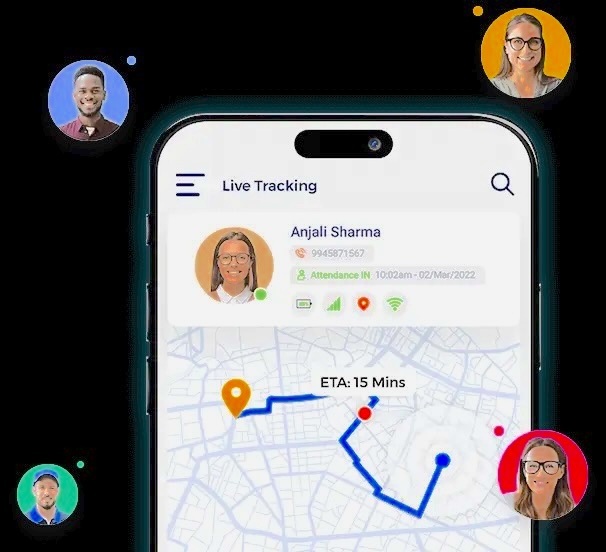
Some services send a link via SMS or social media. When the recipient taps the link and grants location access, their approximate location is shared.
This method requires:
- The user to click the link
- The user to approve location access
Without these steps, no location data is shared.
Type 3: Tools That Search Public Databases
These tools may show:
- The city where a number was registered
- The telecom provider
- Publicly available profile information
This data is not real‑time and often inaccurate.
Type 4: Tools That Show Registered or Billing Location
Some websites display the region where the number was originally assigned. This does not reflect the user’s current location.
Warning:
Unauthorized tracking is illegal in many countries. Always obtain consent before using any location‑based tool.
Method 2: Use Google Maps Location Sharing
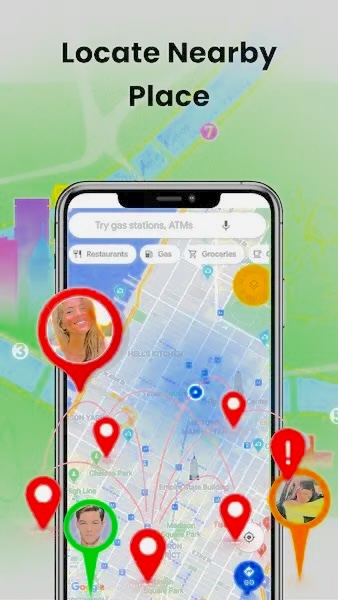
Google Maps includes a built‑in feature that allows users to share their real‑time location with trusted contacts. This is the most reliable and privacy‑friendly method.
How to Use Google Maps Location Sharing
Here’s how to view someone’s location with their full consent:
Step 1: Open Google Maps on the device owner’s phone
Ensure location services are turned on.
Step 2: Tap the profile icon
Select Location sharing from the menu.
Step 3: Choose “New share”
If sharing is already active, you’ll see the duration options.
Step 4: Select how long to share
Options include:
- A set number of hours
- “Until you turn this off”
Step 5: Choose who to share with
The owner can:
- Select a Google contact
- Add someone manually
- Send a link through messaging apps
Once shared, you can view their location in real time on your own Google Maps app.
Why People Use Google Maps Location Sharing
Benefits
- Real‑time updates
- Works in the background
- Easy to enable and disable
- Can be shared through social apps
Limitations
- Requires consent
- Sharing may expire after a set duration
- Stops working if the user disables it or turns off location services
Method 3: Locate a Device with Google Find My Device
If you want to locate your own phone, Google’s Find My Device tool is extremely effective. It works for any Android device linked to your Google account.
How to Use Find My Device
Step 1: Visit the Find My Device website
Go to: google.com/android/find
Step 2: Sign in with your Google account
Use the same account logged into the missing phone.
Step 3: Select your device
A list of your devices will appear.
Step 4: View the location
If the device is online, you’ll see its current location. If offline, you’ll see the last known location.
Additional Features
- Play a sound
- Lock the device
- Display a message
- Erase data remotely
Apple users have a similar tool called Find My, which works across iPhones, iPads, and Macs.
Method 4: Check Popular Social Apps
Many social platforms allow users to share their location voluntarily. While this isn’t a tracking method, it can help you see someone’s location if they choose to share it.
Examples of Location‑Sharing Features
Snapchat – Snap Map
Users can share their location with friends. You can only see it if they’ve enabled sharing with you.
Users can share:
- Live location
- Current location
- Location in a Status post
Again, this requires explicit permission.
Messenger, iMessage, and Others
Most messaging apps include optional location‑sharing tools.
Important Note:
Location information shared on social apps is controlled entirely by the user. Unauthorized access or tracking is prohibited.
Final Thoughts
Locating a phone number on Google Maps isn’t as simple as typing in a number and watching a pin appear. Privacy protections prevent that — and for good reason.
However, there are several legitimate, consent‑based ways to view a device’s location:
- Google Maps Location Sharing for real‑time updates
- Find My Device for locating your own phone
- Social apps where users voluntarily share their location
- Third‑party tools that require installation or user interaction
The key principle is always the same: location tracking must be consensual, transparent, and legal.
Used responsibly, these tools can help keep families connected, recover lost devices, and improve personal safety.