
Introduction
Is your Wi-Fi slowing down because too many devices are connected? Or maybe you want to manage your child’s internet usage more effectively? Blocking a phone from accessing Wi-Fi is a practical solution that gives you control over your home network.
In this detailed guide, we’ll explore six reliable methods to restrict Wi-Fi access for specific phones. Whether you’re using router settings, parental controls, or third-party apps, these solutions will help you secure your network and manage device usage with ease.
1. Disconnect the Internet
Difficulty: ⭐
The simplest method is to physically disconnect your router’s internet cable or switch off the router. This instantly cuts off Wi-Fi access for all devices in your home.
- ✅ Quick and effective
- ❌ Not ideal if you want other devices to stay connected
This method is best used temporarily, for example, during family time or when you want to pause internet usage for everyone.
2. Change Your Wi-Fi Password
Difficulty: ⭐⭐
Changing your Wi-Fi password is one of the most effective ways to block unwanted devices. Once you update the password, all previously connected devices will be disconnected.
Steps:
- Log into your router via its IP address or website.
- Navigate to Wireless Settings or Wi-Fi Settings.
- Update the SSID (network name) and password.
- Save changes and reconnect only trusted devices.
💡 Tip: Use a strong password with a mix of letters, numbers, and symbols to prevent unauthorized access.
3. Block a Phone’s MAC Address
Difficulty: ⭐⭐⭐
Every device has a unique MAC address. By adding a phone’s MAC address to your router’s blocked list, you can permanently deny it access.
How to find a MAC address:
- iPhone/iPad: Settings > General > About > Wi-Fi Address
- Android: Settings > About Phone > Status > Wi-Fi MAC Address
Steps to block:
- Log into your router.
- Go to Wireless MAC Filtering.
- Enable filtering and add the target MAC address.
- Set rules to Deny Access.
This method is highly effective because even if the user knows your Wi-Fi password, they won’t be able to connect.
4. Hide Your Wi-Fi Network (SSID)
Difficulty: ⭐⭐
Hiding your Wi-Fi network makes it invisible to devices scanning for available connections. Only devices that know the SSID and password can connect.
Steps:
- Log into your router.
- Go to Wireless > Basic Settings.
- Disable SSID Broadcast.
- Save changes.
This adds an extra layer of privacy and prevents casual attempts to connect.
5. Use Parental Controls on Your Router
Difficulty: ⭐⭐
Most modern routers include Parental Control features that allow you to block or limit internet access for specific devices.
Steps:
- Log into your router.
- Navigate to Parental Controls under Security or Advanced settings.
- Add the target device using its MAC address.
- Set time limits or block access completely.
This method is perfect for parents who want to manage their children’s screen time responsibly.
6. Use Third-Party Network Management Apps
Difficulty: ⭐⭐
Apps like NetGuard or Fing allow you to monitor connected devices and block specific phones with a tap.
- ✅ Easy to use, no router login required
- ❌ Some apps may require premium features
These apps are especially useful if you want quick control without diving into router settings.
Other Ways to Limit Phone Usage (Beyond Wi-Fi Blocking)
Blocking Wi-Fi is just one part of managing device usage. Here are additional strategies:
- Screen Time on iPhone/iPad: Set daily app limits and downtime.
- Google Family Link on Android: Manage app usage and set screen time remotely.
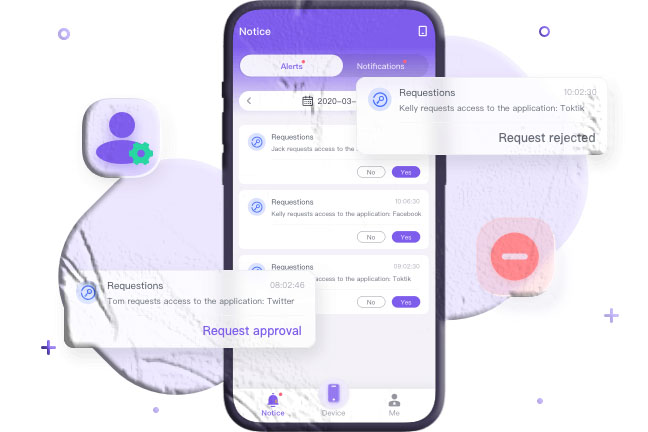
- Parental Control Apps (e.g., SpyMobile): Block apps, monitor activity, and set daily usage limits.
FAQs
Q1: Can I block only one phone without affecting others? Yes. By using MAC address filtering or parental controls, you can block a single device while keeping others connected.
Q2: Will changing the Wi-Fi password disconnect all devices? Yes. All devices will be disconnected, and only those with the new password can reconnect.
Q3: Is hiding SSID enough to secure my Wi-Fi? Not entirely. It adds privacy but should be combined with a strong password and encryption.
Q4: Can blocked devices still use mobile data? Yes. Blocking Wi-Fi only prevents access to your network. The phone can still use its mobile data plan.
Q5: Which method is best for parents? Parental controls or third-party apps are the most flexible options, as they allow time limits and app restrictions.
Conclusion
Blocking a phone from Wi-Fi is easier than most people think. From simple password changes to advanced MAC filtering, you have multiple options to secure your network and manage device usage.
Whether you’re protecting bandwidth or guiding your child’s digital habits, these methods give you the control you need.