
Introduction
Losing your Samsung phone is more than just inconvenient—it can also put your personal data at risk. From photos and contacts to banking apps and emails, a misplaced device can expose sensitive information. Fortunately, Samsung and Google provide free tools to help you locate, lock, or erase your phone remotely.
In this guide, we’ll explore three effective methods to track your Samsung phone when it’s lost, plus a bonus parental control solution for families.
1. Find Your Samsung Phone Using Find My Mobile
Samsung’s Find My Mobile is a powerful, free tool designed specifically for Galaxy devices. It allows you to:
- Track your phone’s location in real time.
- Ring your phone to locate it nearby.
- Lock your device and set a new PIN.
- Erase all data remotely.
- Extend battery life by closing background apps.
Setting Up Find My Mobile
- Open Settings on your Samsung device.
- Navigate to Biometrics and Security → Find My Mobile.
- Enable the feature and log in with your Samsung account.
- Activate Remote Unlock, Send Last Location, and Offline Finding.
Offline Finding is especially useful—it lets nearby Galaxy devices report your phone’s location even without internet access.
Tracking Your Phone
- Visit findmymobile.samsung.com or smartthingsfind.samsung.com.
- Sign in with your Samsung account.
- Select your device to view its location on a map.
- Use available options to ring, lock, or erase your phone.
2. Find Your Samsung Phone with Google Find My Device
Since Samsung phones run Android, they support Google’s Find My Device service.
How to Use It
- Go to google.com/android/find.
- Sign in with your Google account.
- Select your lost Samsung phone from the list of devices.
- View its location on the map, ring it, lock it, or erase data.
This method is especially useful if you already use Google services like Gmail or Google Photos.
3. Find Your Samsung Phone with a Galaxy Watch
If you own a Samsung Galaxy Watch paired with your phone, you can quickly locate it.
Steps
- Swipe up on your Galaxy Watch to open the app drawer.
- Tap the SmartThings Find icon.
- Press Start to make your phone ring.
While this option offers fewer features than the web portals, it’s a quick way to find a misplaced phone at home or nearby.
Bonus: SpyMobile Parental Control App
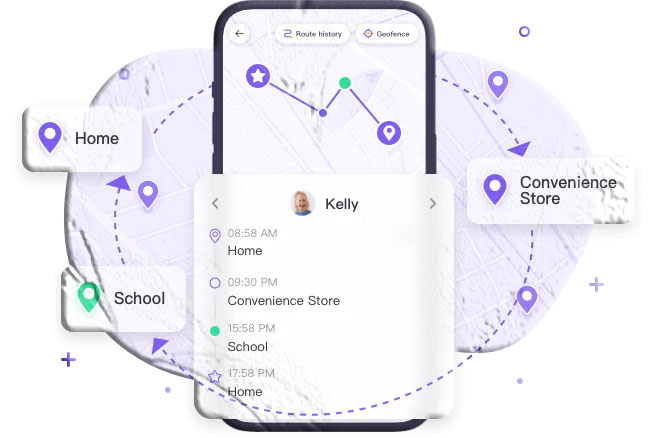
For parents, the SpyMobile Parental Control app provides advanced tracking and monitoring features:
- Real-time location tracking and history.
- Remote monitoring of surroundings.
- Safe area alerts when kids enter or leave zones.
- App monitoring and social media sync.
- Screen time limits and stealth mode operation.
It’s compatible with all Samsung models and offers a 3-day free trial.
FAQs About Finding a Samsung Phone
- Can I find my Samsung phone if it’s offline? Yes, if you enabled Offline Finding in Find My Mobile before it went offline.
- Can I track a Samsung phone that is turned off? No, but you can see its last known location if Find My Mobile was enabled.
- Can I add a Samsung device to Find My iPhone? No, Find My iPhone only works with Apple devices. Use Samsung’s Find My Mobile or Google Find My Device instead.
- Can I track my Samsung phone with an IMEI number? You can report the IMEI to your carrier or police, but success depends on network and device status.
- Can I track my Samsung phone from an iPhone? Yes, by visiting the Find My Mobile or Google Find My Device websites from Safari or another browser.
Conclusion
Losing a Samsung phone doesn’t have to mean losing your data. With Find My Mobile, Google Find My Device, and even a Galaxy Watch, you have multiple free ways to locate, lock, or erase your device. For families, parental control apps like SpyMobile add an extra layer of safety.
By setting up these tools in advance, you’ll be prepared to act quickly if your phone ever goes missing.