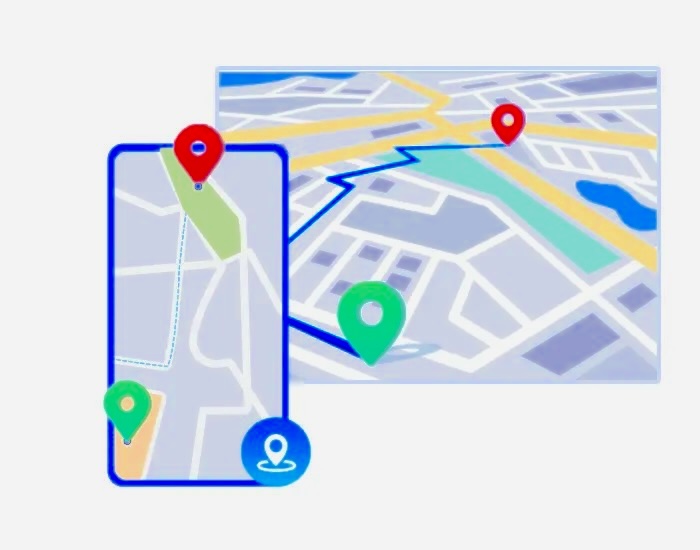

Google Maps has become one of the most trusted navigation tools in the world. Whether you’re driving, walking, or exploring a new city, the app usually provides accurate, real‑time location data. But even the most reliable apps can run into issues—and one of the most common problems users face is Google Maps showing the wrong location.
If your blue dot is jumping around, pointing to the wrong street, or placing you miles away from where you actually are, you’re not alone. Location inaccuracies can happen for several reasons, including weak GPS signals, outdated app data, incorrect device settings, or interference from other apps.
This comprehensive guide explains why Google Maps may show the wrong location and provides step‑by‑step solutions for Android, iPhone, and PC users. Everything is rewritten from scratch, parent‑safe, and easy to follow.
Why Google Maps Might Show the Wrong Location
Google Maps relies on a combination of GPS, Wi‑Fi, mobile networks, and device sensors to determine your position. When any of these signals are weak or misconfigured, the app may display an incorrect location.
Common causes include:
- Weak or obstructed GPS signals
- Outdated Google Maps app
- Incorrect location settings
- Interference from VPNs or mock‑location apps
- Corrupted app cache
- Battery saver restrictions
- Poor internet connection
Understanding the cause helps you choose the right fix. The sections below walk you through the most effective solutions.
Fixing Google Maps Wrong Location on Mobile (13 Proven Solutions)
If Google Maps is inaccurate on your Android or iPhone, try the following fixes one by one. These solutions address the most common causes of location errors.
1. Turn On Location Services
Google Maps cannot function correctly if your device’s location services are disabled.
Enable Location Services on Android
- Open Settings.
- Search for Location and tap it.
- Toggle Location to ON.
- Ensure Google Maps has permission to access your location.
Enable Location Services on iPhone
- Open Settings → Privacy & Security.
- Tap Location Services and turn it ON.
- Scroll to Google Maps → select Always.
Once enabled, reopen Google Maps and check if the blue dot updates correctly.
2. Improve Location Accuracy
High‑accuracy mode uses GPS, Wi‑Fi, mobile networks, and sensors to pinpoint your location more precisely.
Improve Accuracy on Android
- Go to Settings → Location.
- Tap Google Location Accuracy.
- Turn on Improve Location Accuracy.
Improve Accuracy on iPhone
- Go to Settings → Privacy → Location Services.
- Tap Google Maps.
- Enable Precise Location.
3. Calibrate Your Compass
If your compass is misaligned, Google Maps may point you in the wrong direction.
Calibrate on Android
- Open Google Maps.
- Tap the blue dot.
- Select Calibrate compass.
- Move your phone in a figure‑eight motion until accuracy improves.
Calibrate with Live View on iPhone
- Open Google Maps.
- Tap the blue dot.
- Select Calibrate with Live View.
- Follow the on‑screen AR instructions.
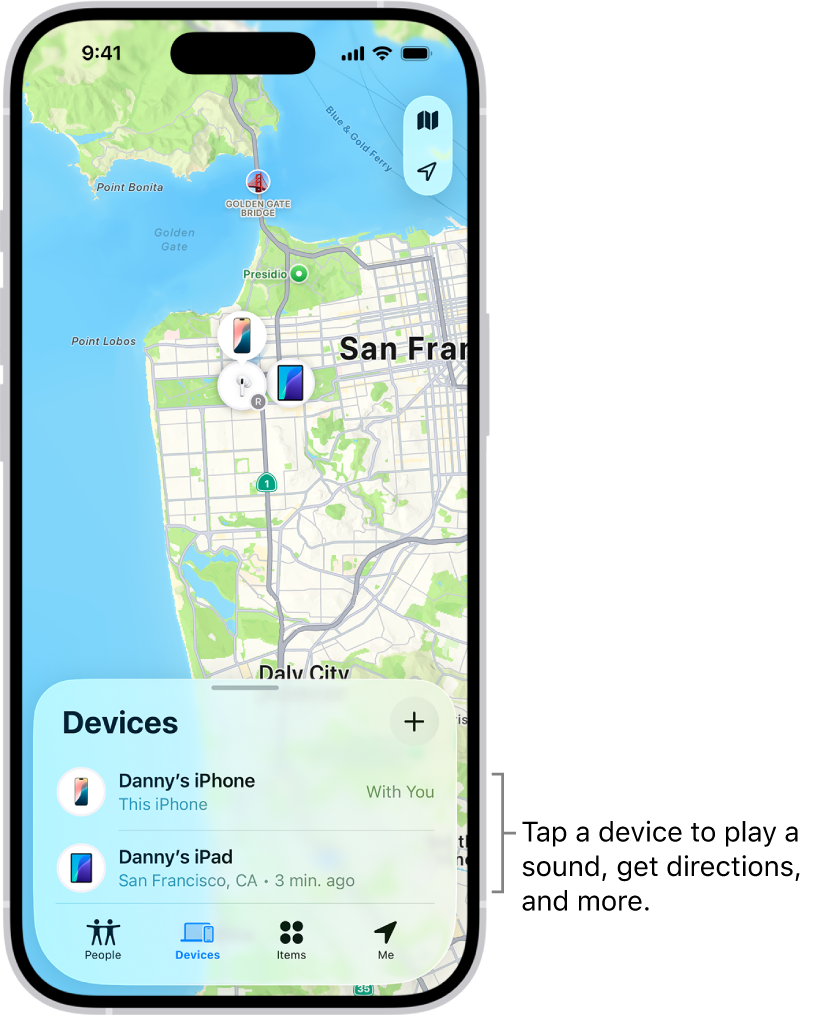
[IMAGE POSITION #1] Alt text: Calibrating compass in Google Maps to fix inaccurate location Caption: A properly calibrated compass helps Google Maps determine your direction and location more accurately.
4. Disable Mock Locations (Android)
Some apps—especially developer tools—can simulate fake locations.
To disable mock locations:
- Open Settings → Developer options.
- Tap Select mock location app.
- Choose None.
If Developer Options are hidden, enable them by tapping Build number seven times in About phone.
5. Turn On Wi‑Fi
Even if you’re not connected to a network, Wi‑Fi helps Google Maps detect nearby signals and improve accuracy.
Swipe down your notification panel and enable Wi‑Fi.
6. Clear Google Maps Cache and Data
Corrupted cache files can cause outdated or incorrect location data.
Clear Cache on Android
- Open Settings → Apps → Google Maps.
- Tap Storage.
- Select Clear cache.
Clear App Data on iPhone
- Open Google Maps.
- Tap your profile icon → Settings.
- Scroll to About, terms & privacy.
- Tap Clear application data.
7. Disable Battery Saver Mode
Battery saver restricts background activity and may block GPS updates.
Disable on Android
Swipe down the quick panel and turn off Power Saving Mode.
Disable on iPhone
Go to Settings → Battery → turn off Low Power Mode.
8.Update Google Maps
An outdated app may contain bugs or outdated location data.
- Android: Open Google Play Store → search Google Maps → Update.
- iPhone: Open App Store → search Google Maps → Update.
9. Reinstall Google Maps
If the app is corrupted, reinstalling ensures a clean version.
Uninstall Google Maps → restart your phone → reinstall it.
10. Restart Your Phone
A simple restart can fix temporary GPS or sensor glitches.
11. Use Google Maps Go (Android)
Google Maps Go is a lightweight version designed for low‑end devices and weak connections. It uses less data and often performs better in poor signal areas.
12. Download Offline Maps
Offline maps reduce reliance on unstable internet connections.
Download on Android
- Open Google Maps → tap your profile icon.
- Select Offline maps → Select your own map.
- Choose an area → Download.
Download on iPhone
- Open Google Maps → tap your profile icon.
- Select Offline maps → Select your own map.
- Choose an area → Download.
13. Turn Off VPN or Proxy Apps
VPNs can reroute your connection through another region, causing Google Maps to think you’re somewhere else.
Disable your VPN and check your location again.
Fixing Google Maps Wrong Location on PC (6 Effective Solutions)
Google Maps on desktop can also show incorrect locations. Here’s how to fix it.
1. Allow Location Permissions
On Windows or macOS
- Open Settings → Privacy → Location.
- Enable Allow apps to access your location.
- Ensure your browser has permission.
In Your Browser
- Open browser Settings.
- Search Location.
- Go to Site Settings → Location.
- Set Google Maps to Allow.
2. Turn Off VPN or Proxy
VPNs can confuse Google Maps by masking your real IP address.
Disable your VPN and refresh the page.
3. Reload Your Browser
Press:
- Ctrl + R (Windows)
- Cmd + R (Mac)
4. Check Your Internet Connection
Weak or unstable internet can cause location errors. Switch networks or move closer to your router.
5. Clear Browser Cache
Old cached data can interfere with Maps.
Clear Cache in Chrome
- Click the three dots.
- Select More tools → Clear browsing data.
- Choose a time range.
- Select Cached images and files.
- Click Clear data.
6. Restart Your Computer
A fresh reboot clears temporary system glitches affecting location services.
What the Blue Dot Means on Google Maps
The blue dot represents your current location. Its accuracy depends on your surroundings:
- A solid blue dot means strong GPS accuracy.
- A blue circle around the dot means your exact position is somewhere within that radius.
Tall buildings, tunnels, basements, and dense forests can weaken GPS signals.
FAQs About Google Maps Showing the Wrong Location
1. How do I change my location on Google Maps on PC?
- Open Google Maps.
- Click the menu icon (three lines).
- Select Edit the map → Wrong pin location.
- Submit corrected details.
2. Why does Google Maps think I’m somewhere else?
Common reasons include:
- Weak GPS
- Indoor location
- VPN or proxy interference
3. How do I correct my address on Google Maps?
- Search your address.
- Click the three dots.
- Select Suggest an edit.
- Update the address → Submit.
4. How do I fix a wrong location on Google My Business?
- Log in to Google My Business.
- Select your business.
- Go to Info → Location → Edit.
- Save changes.
5. How do I correct my home address in Google Maps?
- Search your home address.
- Tap the three dots.
- Select Suggest an edit.
- Update the address → Submit.
6. How do I report an incorrect address to Google Maps?
- Search the incorrect address.
- Tap the three dots.
- Select Report a problem.
- Choose Incorrect address.
- Describe the issue → Submit.
Conclusion
Google Maps is incredibly reliable, but location errors can still happen due to weak GPS signals, outdated app data, incorrect settings, or device issues. The good news is that most problems can be fixed quickly using the solutions in this guide.
Whether you’re on Android, iPhone, or PC, enabling accurate location settings, calibrating your compass, clearing cache, updating the app, or adjusting permissions can dramatically improve accuracy.