
WhatsApp has grown into one of the world’s most widely used communication platforms, offering messaging, voice calls, video calls, and group chats—all in one place. For many people, WhatsApp has even replaced the traditional phone app on their devices. Because of this, it can be frustrating when you try to call someone and the call doesn’t go through, or you’re unsure whether they’re busy on another call.
This guide explains the most reliable ways to know if someone is currently on a WhatsApp call. Everything here is written in a neutral, privacy‑respecting, parent‑safe manner, and focuses only on legitimate, ethical methods.
Understanding WhatsApp Call Status Indicators
Before trying any advanced method, it helps to understand the built‑in call status messages WhatsApp shows. These indicators often reveal whether the person is busy, offline, or already on another call.
Below are the most common call statuses and what they mean.
1. Busy Tone
If the person you’re calling is already on another WhatsApp call or a regular phone call, you may hear a busy tone. This is WhatsApp’s way of telling you the line is currently occupied.
Once the person ends their ongoing call, the busy tone disappears and your call will begin ringing normally.
2. “Calling” Status
When you see Calling, it means your phone is trying to reach the recipient, but their device is not currently receiving the call. This can happen if:
- Their phone is turned off
- They have no internet connection
- Their Wi‑Fi or mobile data dropped
- They switched to Airplane Mode
- Their SIM card is temporarily disconnected
- They blocked you on WhatsApp
If they come back online later, they will see a missed call notification—unless they have blocked you.
3. “Ringing” Status
If you see Ringing, your call has successfully reached the recipient’s device. Their phone is receiving the call, and they can answer it if they are nearby.
This is the clearest sign that the person is not on another WhatsApp call at that moment.
4. “In Another Call” Status
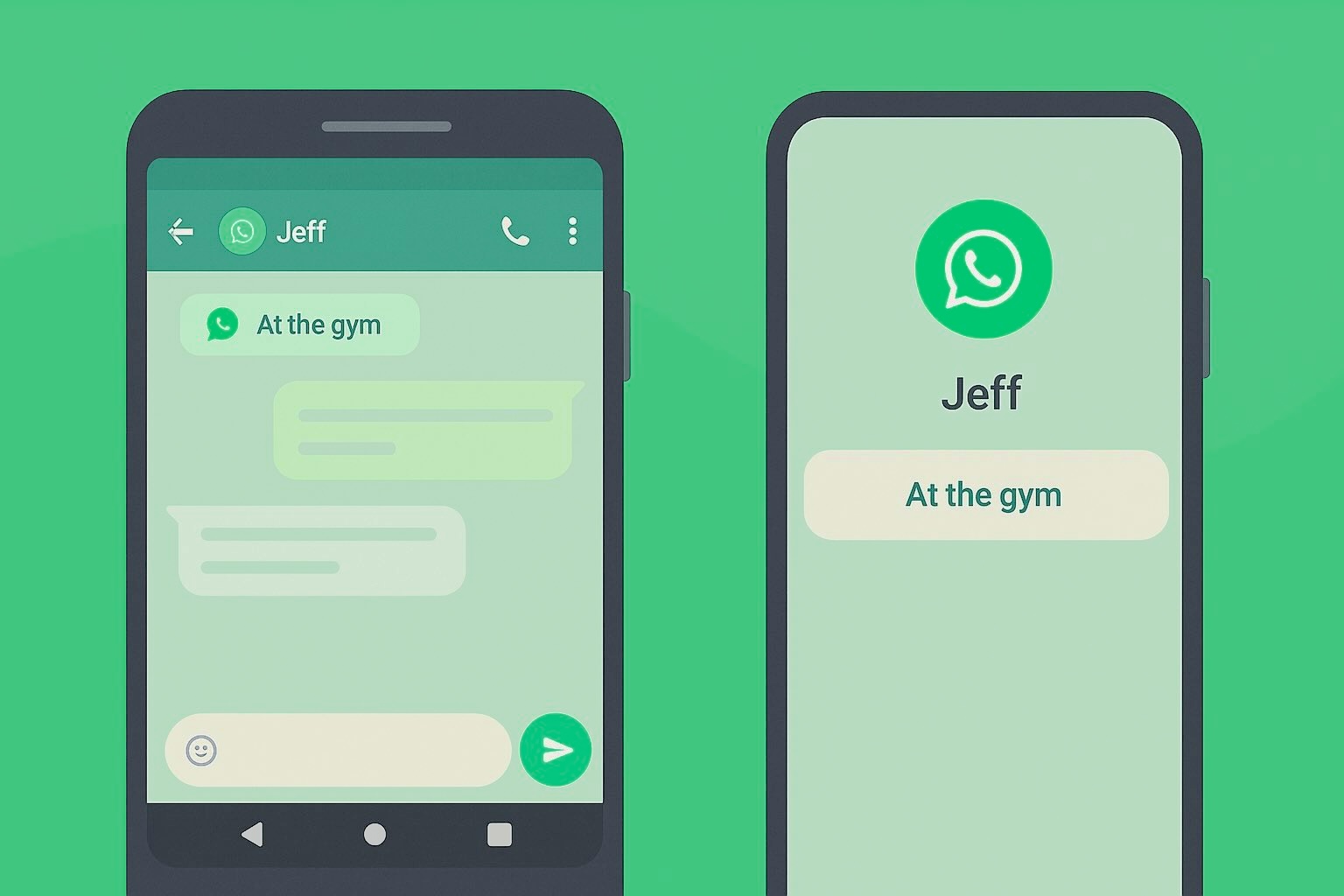
This status appears when the person is currently on another WhatsApp call. On Android devices, WhatsApp clearly displays In another call when the recipient is busy on a WhatsApp voice or video call.
If they are on a regular phone call, you may still see this status, depending on the device and operating system.
5. “No Answer” Status
If the call rings for a while and the person does not pick up, WhatsApp eventually displays No Answer. This can mean:
- They ignored the call
- They were away from their phone
- They were on another call (especially on iPhone)
- Their phone rang silently
On iPhones, No Answer may appear quickly if the person is already on another call.
6. “Call Declined” Status
If you see Call Declined, the recipient manually rejected your call. They may be busy, in a meeting, or simply unable to talk at the moment.
4 Reliable Ways to Know If Someone Is on a WhatsApp Call
If the call status alone doesn’t give you enough information, you can try the following methods. All are safe, ethical, and respect privacy boundaries.
1. Send a Message (⭐⭐⭐ Reliable)
One of the simplest ways to check whether someone is on a WhatsApp call is to send them a message. Their response—or lack of response—can give you clues.
How this helps:
- If they reply with a short message like “On a call,” you have your answer.
- If they take longer than usual to respond, they may be busy on a call.
- If your message shows only one tick (sent but not delivered), they may be offline or have connectivity issues.
- If your message never delivers and their profile picture disappears, you may have been blocked.
Steps:
- Open WhatsApp.
- Go to the chat of the person you tried calling.
- Send a simple message.
- Observe the ticks, read receipts, and response time.
Success Rate:
Moderate. It depends on whether the person is willing or able to respond.
2. Use a Parental Control App (For Child Safety Only)
This method is strictly for parents monitoring their minor children with full consent and legal compliance. Parental control apps help ensure a child’s digital safety by showing how they use their device, including WhatsApp activity patterns.
Apps like AirDroid Parental Control allow parents to:
- View app usage reports
- See how long WhatsApp has been active
- Receive notifications about WhatsApp calls
- Mirror the child’s screen (Android only)
- Monitor device activity for safety purposes
How it works (legally and ethically):
- Install AirDroid Parental Control on the parent’s device.
- Create or sign in to an account.
- Install AirDroid Kids on the child’s device.
- Pair both devices with consent.
- View WhatsApp usage under the Applications section.
Effectiveness:
High—when used responsibly for child safety.
Important Note:
Monitoring an adult’s device without consent is illegal. Parental control tools must only be used for minors with proper authorization.
3. Check Their Online or Last Seen Status (⭐⭐ Limited Reliability)
WhatsApp’s Online and Last Seen indicators can offer clues about someone’s availability.
What you can learn:
- Online means the person is actively using WhatsApp. They may be chatting or on a call.
- Last Seen shows when they were last active.
- If their profile appears blank, you may have been blocked.
Limitations:
- Many users disable Last Seen for privacy.
- Being online does not guarantee they are on a call.
- Some people use WhatsApp Web, which keeps them “online” even if they’re not on their phone.
Success Rate:
Low to moderate, depending on the person’s privacy settings.
4. Ask a Mutual Friend (⭐⭐⭐ Situational)
If you urgently need to reach someone, asking a mutual friend can be surprisingly effective.
How this helps:
- A mutual friend may know whether the person is currently busy.
- If they are physically near the person, they can pass along your message.
- They may confirm whether the person has been reachable recently.
Success Rate:
Varies depending on the closeness and availability of the mutual friend.
Frequently Asked Questions About WhatsApp Call Activity
Below are some common questions people ask about WhatsApp call behavior.
1. Does WhatsApp Notify You If Someone Is on a Call on Another App?
No. WhatsApp does not notify you if the person is on a call using another app such as Zoom, Skype, or Google Meet. They may simply decline your call or message you to explain.
If they are on another WhatsApp call or a regular phone call, you may see:
- In another call (Android)
- No Answer (iPhone)
2. Can Someone Be on a WhatsApp Call Without Internet?
No. WhatsApp calls require an active internet connection. Without Wi‑Fi or mobile data, the call cannot start or continue.
Even parental control apps cannot detect WhatsApp activity if the device has no internet connection.
3. Can I Tell If Someone Muted Me During a WhatsApp Call?
No. WhatsApp does not notify users when they are muted. The only way to guess is if the person stops responding while still connected.
4. How Do I Know If Someone Blocked Me on WhatsApp Calls?
Signs you may have been blocked include:
- Your calls always show Calling, never Ringing
- Their profile picture disappears
- You cannot see their Last Seen or Online status
- Your messages show only one tick
If all these signs appear together, blocking is likely.
Final Thoughts
Knowing whether someone is on a WhatsApp call can be helpful in everyday communication. WhatsApp’s built‑in call statuses—such as Ringing, Calling, In another call, and No Answer—often provide enough information to understand what’s happening.
For additional clarity, you can send a message, check their online status, or ask a mutual friend. Parents who need to ensure their child’s digital safety can use parental control apps responsibly and legally.
Always remember that privacy matters. These methods are meant to help you communicate better—not to invade anyone’s personal space.